Apple
Silicon · macOS 15 or laterOn-device by design
A PRIVATE HOME FOR YOUR CONVERSATIONS
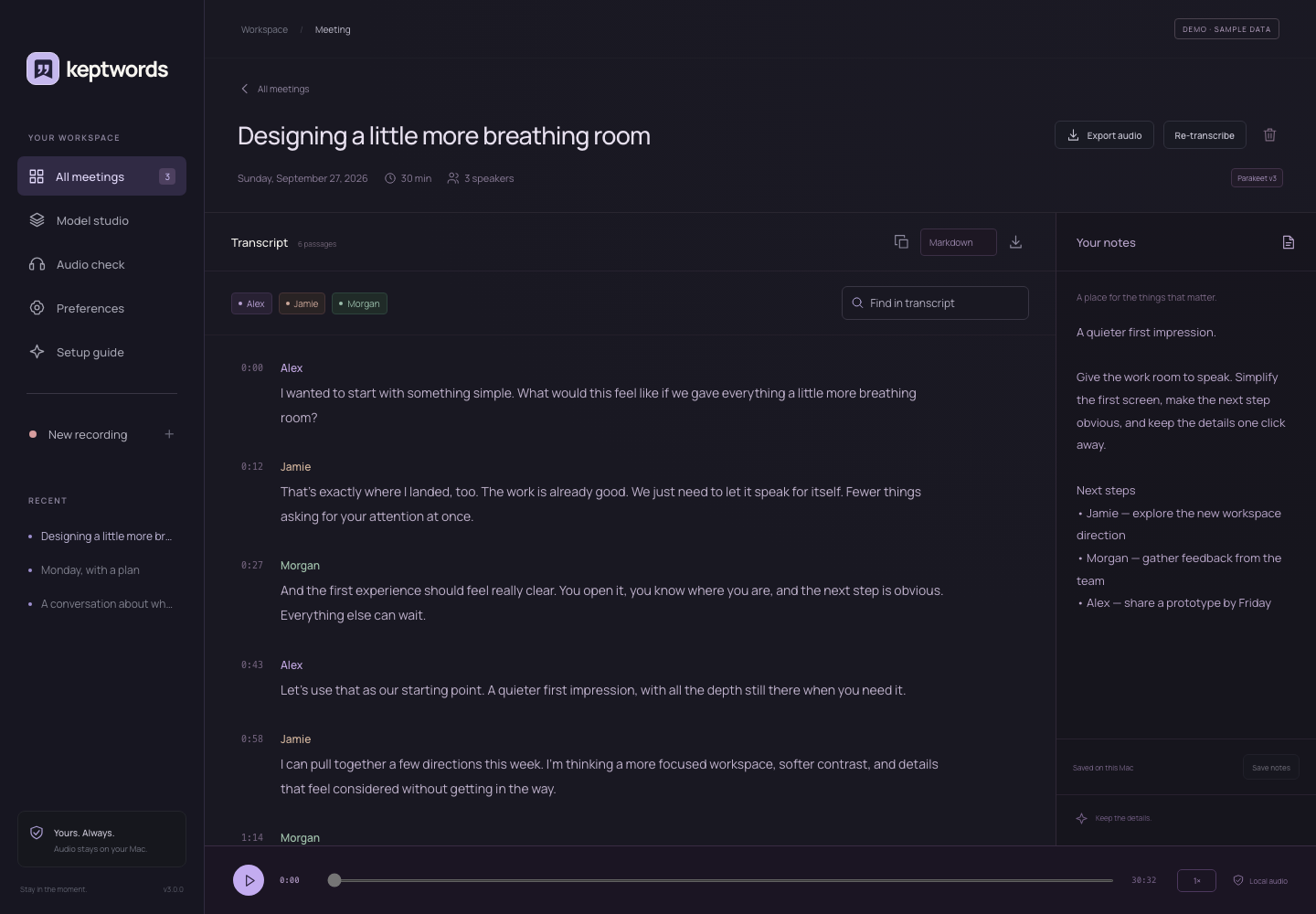
The real workspace, with sample conversation content. Your library
starts with you.
No
cloud transcriptionNo
meeting botsBuilt for Apple Silicon
A LITTLE LESS NOTE-TAKING
Stay with the conversation. Find the details later.
From the first hello to the next good idea,
keep the moments that matter in one thoughtful place.
01
Bring the whole room.
Record your microphone, audio from your Mac, or both. Import an
existing recording when the conversation has already happened.
Save audio alone, or transcribe whenever you are ready.
MICROPHONE + SYSTEM AUDIO
02
Follow every voice.
Get a timestamped transcript that reads as a conversation: one
passage per speaker turn, with anonymous speaker labels. Choose
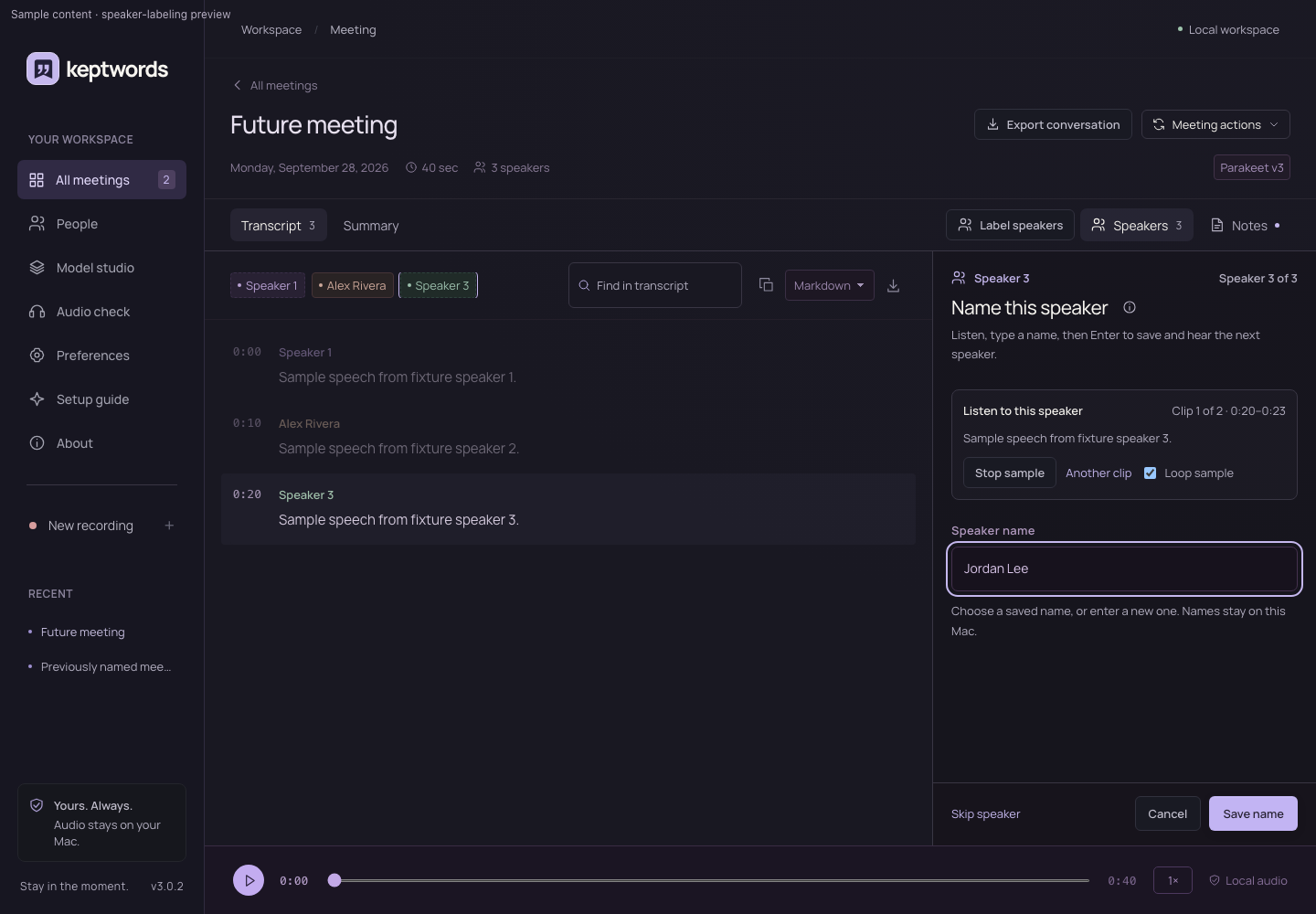
Label speakers to hear a short sample automatically, choose a name,
then press Enter to save and hear the next voice. Familiar spellings stay
in your names library, including your name from Setup or Preferences.
LOCAL ASR + SPEAKER DIARIZATION
03
Keep what matters.
Generate a readable narrative summary. Keep
your own notes beside the transcript, find a passage later, and
share the conversation with its audio and saved summaries.
KEPTWORDS · AUDIO · TEXT · MARKDOWN · JSON · SRT
FROM CONVERSATION TO CLARITY
Keep the decisions. Remember the next steps.
The conversation, in context.
Read the discussion as a chronological narrative, with follow-ups
gathered below. The full account stays beside your transcript and
original recording, so you can return to what was said.
A summary you can follow.
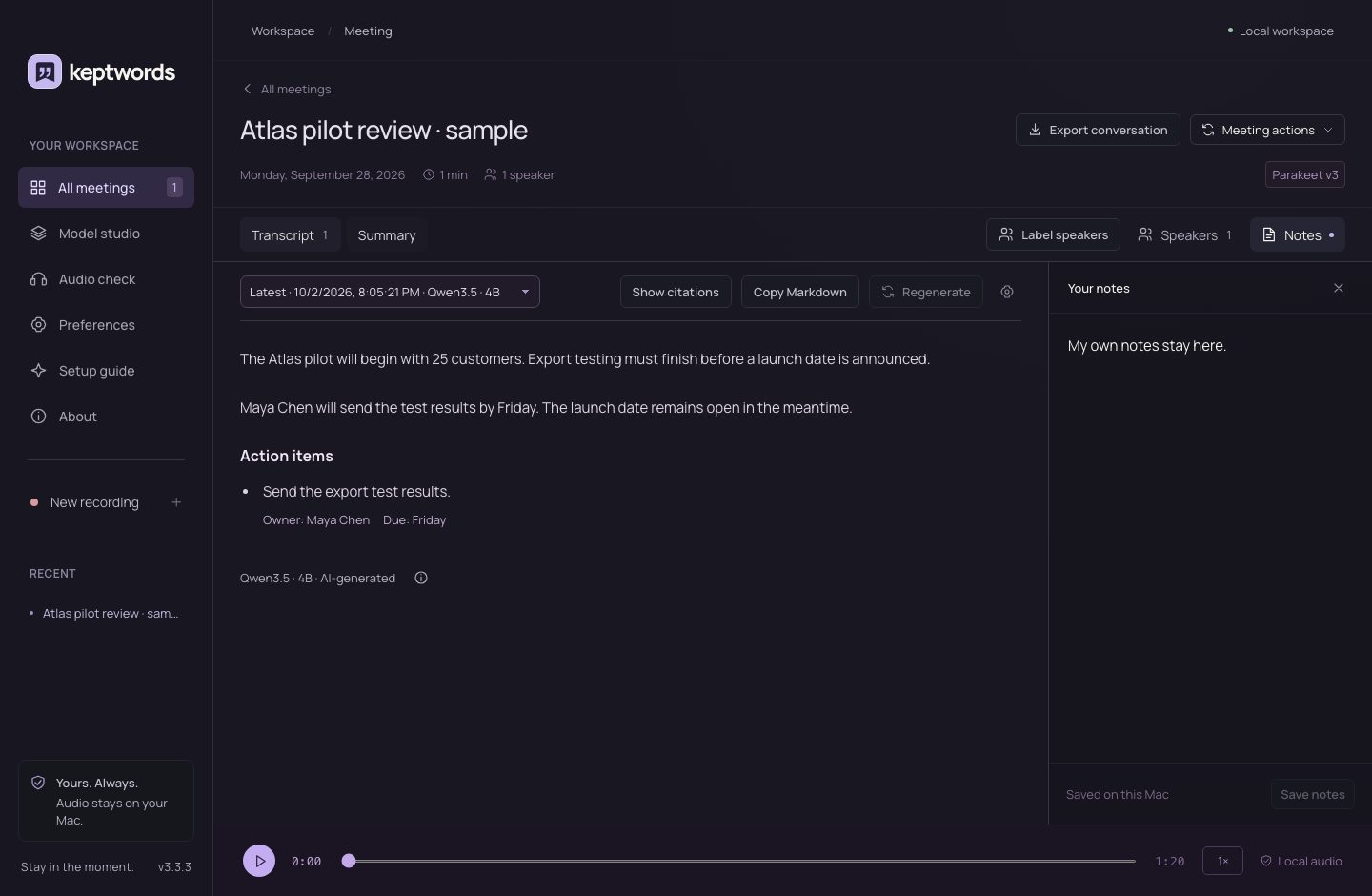
Start with Generate summary and review missing speaker names, or
continue without them. Citations start hidden; show them to inspect
supporting passages or jump to the audio. Copy Markdown follows
your citation choice. Regenerate when needed and keep earlier
versions. Model controls stay under Summary options; your own
notes stay separate.
Give the voices their names.
Confirm names for detected speakers, or choose to continue with
some names missing. Passages without a speaker assignment remain
anonymous and do not block a summary once the detected speakers
are named. Change a name later and regenerate with the latest
names; every previous version stays available.
Your model. Your meeting.
Choose Qwen by default or experimental Liquid in Setup and
Model studio. Preferences sets whether new
recordings get summaries, and each meeting can override it.
With Liquid selected, Use Qwen once offers another model for this
summary without changing your default. If needed, Prepare Qwen
explicitly downloads it first, with progress and cancellation.
Imported and existing meetings start only when you ask. Shared
conversation files keep your saved summary versions.
The app's Summary tab, shown with labelled sample content. Review names, inspect sources, and keep previous versions when you regenerate.
Both models use 4-bit MLX with Metal on Apple
Silicon, with an explicit download before first use. Summaries target
Macs with 16 GB RAM; performance testing so far used a 32 GB Mac, and
16 GB hardware has not yet been qualified. Memory is checked before and
during generation. Long meetings use multiple passes and take longer;
very long transcripts can exceed the summary limit without replacing
a saved version. When a paragraph cannot be confirmed, labeled source
excerpts retain original wording. Unconfirmed action lists are omitted
with a notice. Both models can confuse task status or deadlines and
miss commitments, so check decisions and action items against the
transcript. Liquid produces English summaries and has separate commercial
license terms above $10 million annual revenue; Qwen uses Apache 2.0.
Model preparation links to both licenses. No meeting content is
uploaded for summarization.
Qwen preparation keeps only the text weights
needed for meetings, saving about 667 MB of installed storage while
preserving those weights exactly. Its first download remains about
3.06 GB; existing downloaded weights can be prepared locally through
Verify / repair. Models are released when their work finishes.
EVERY CONVERSATION WITHIN REACH
Remember the thought. Find the moment.
Search across meeting titles, transcripts, your notes, and the
speaker names you’ve confirmed. Open library search with
⌘K.
KEYWORDS + RELATED MEANINGS · ENTIRELY LOCAL
The words you remember.
Keyword search works without downloading a model. Put your
whole query in quotation marks to find an exact phrase.
The idea you remember.
Optionally include related meanings with a local search model.
Prepare compact BGE Small for English or the larger,
multilingual Qwen3 Embedding model. Preparation indexes your
library and turns on automatic indexing for new transcripts.
Narrow it down.
Filter by speaker or by recorded and imported meetings. Keyword results appear first while related matches are being found.
Return to the source.
See matching excerpts grouped by meeting. Open a timed transcript match to jump to that moment in the recording.
Keep it on your Mac.
Queries and search processing stay local. Keyword search remains available while a model is unprepared, busy, or waiting for more memory.
A MOMENT BEFORE THE MEETING
Sound check. Then settle in.
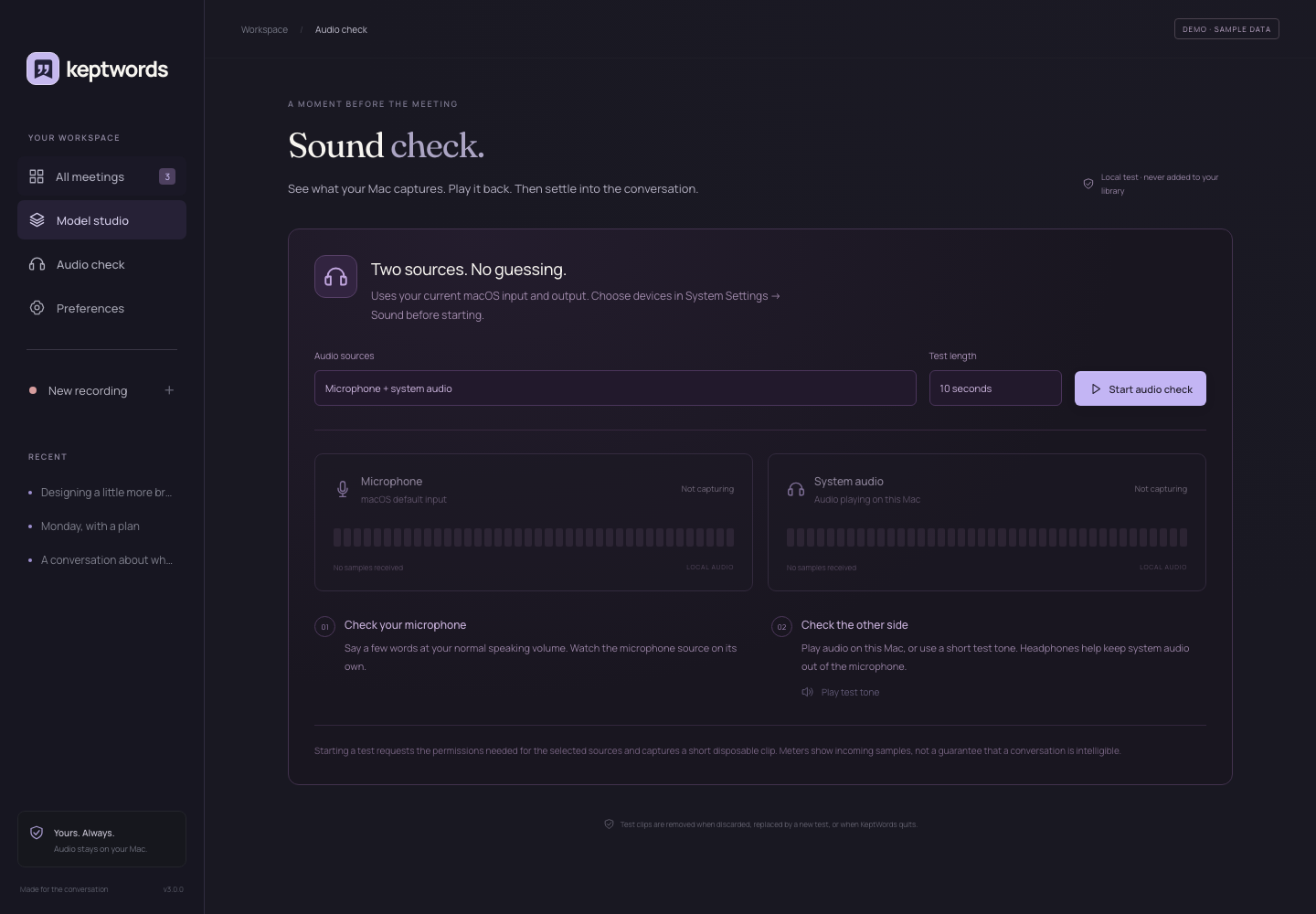
Guided setup walks you through permissions, audio devices, and
optional model downloads. Check your microphone and system audio
separately, record a short disposable clip, and listen back before
the meeting. When macOS already reports permission, KeptWords
checks system-audio access automatically as audio settings refresh.
Returning to the app or choosing Check again keeps confirmed access
unless a newer result supersedes it. Initial consent remains your
choice.
Choose a microphone or follow your Mac’s default input
Native system audio capture; no virtual audio driver required
Independent source meters during capture
Short audio tests with source-by-source playback
Explicit test tone and disposable test clips
Permission checks do not record test audio. A moving meter shows
source activity; listening back is how you check clarity.
Audio check in the app. Sample workspace; no active capture.
GOOD LISTENERS. GREAT MODELS.
Open models. A private studio.
Choose summary, speech, speaker, and search models to suit your work. Model
studio shows parameter counts, download sizes, actual storage use,
and preparation status. Setup includes the same summary and search
choices. Prepare only what you need; choosing a model never starts
a download.
Qwen3.5-4B DEFAULT SUMMARY
Multilingual narrative meeting summaries. A 3.06 GB download.
MLX · Metal 4-BIT · APPLE GPU
Liquid LFM2-2.6B-Transcript EXPERIMENTAL
A smaller option for English summaries. A 1.45 GB download; review decisions and actions.
MLX · Metal 4-BIT · APPLE GPU
Parakeet Ultra
The default for new setups: a post-trained Parakeet with the same 25 languages and fewer word errors in our meeting tests. About a 630 MB download.
CoreML NEURAL ENGINE
Parakeet TDT v3
The previous default, still available for multilingual speech recognition.
CoreML NEURAL ENGINE
Nemotron 3.5 ASR
NVIDIA’s multilingual speech model, running natively on your
Mac.
Metal APPLE GPU
Nemotron Speech English
A dedicated option for English speech recognition.
Metal APPLE GPU
Nemotron 3 Diarization SPEAKERS
Separate up to eight anonymous speakers, locally.
Metal APPLE GPU
BGE Small English v1.5 SEARCH
The default, compact model for finding related meanings in English.
Local SEARCH
CAM++ EXPERIMENTAL
Optional voice comparisons from reviewed examples. A separate 16.6 MB download.
CoreML CPU / GPU
Qwen3 Embedding 0.6B SEARCH
An optional, larger multilingual search model. The first search can take longer.
Local SEARCH
Remove downloaded summary, speech, or speaker models to free space;
your recordings, transcripts, and saved summaries remain available.
Summary models offer Download, Verify / repair, and Remove controls,
with their source and license one click away. Choose either search
model in Model studio and see its download size and storage use.
Automatic indexing keeps
saved transcripts and notes searchable by meaning; recording and
transcription take priority. Pause or resume indexing in Search
settings, or rebuild an index when needed. Keyword search stays
available while indexing waits for memory. Automatic indexing checks again and resumes when enough memory is available; a temporary pause needs no manual restart. A macOS memory warning alone does not block indexing when its model allowance and safety margin fit.
YOUR WORKSPACE, AFTER THE CALL
Everything stays together.
Audio now. Words when you’re ready.
Set up audio in a roomy recording dialog. Processing after recording starts on by default for new installations; your saved choice is preserved. Queued recordings retry after temporary memory or model-readiness limits clear, including after restarting the app. Turn it off to save audio for later. Record without a model and prepare one before transcription. Imported audio stays unprocessed until you decide to transcribe.
Read, listen, and find a passage.
The transcript gets the room it needs. Open Speakers or Notes only when you need them, search within the conversation, jump from a timestamp to playback, and copy the full transcript. Give each meeting a title that makes sense to you.
Familiar names, in your words.
Choose Label speakers directly above the conversation. Naming opens beside the transcript, with that speaker’s passages highlighted so you can read along. A short sample plays automatically and loops; type a few characters to highlight a saved spelling, then press Enter to save and hear the next speaker. Unnamed and unconfirmed speakers come first. Pause, replay, try Another clip, or Skip speaker whenever you need. No voice model is needed. Your names library remembers spellings; re-transcribed labels ask you to review earlier names. If only you use your microphone, Identify me can label supported microphone speech after transcription. Your optional name from Setup or Preferences replaces “Me” in transcripts and shared recordings. Open Speakers to change or disable microphone attribution; uncertain matches stay unnamed.
Your notes. Your formats.
Open Notes to write beside the conversation. Empty notes start closed; saved notes open automatically. Closing the panel keeps your draft, and an unsaved indicator reminds you to save. Export the audio independently (a lossless rendering of what is stored, for compressed meetings), or save transcripts as text, Markdown, JSON, and SRT subtitles.
Room for a second try.
Open Meeting actions from either tab to re-transcribe, re-summarize, or match speaker names. Voice matching checks unnamed speakers and preserves confirmed names; missing setup or uncertain memory stays visible. Cancel or retry processing while retaining audio, notes, the previous transcript, and saved summaries. Recordings shorter than two minutes are filtered into the local Recently Deleted folder and kept there for the retention period. Imports and recordings with notes, named speakers, or saved summaries stay in the library. Removed meetings are kept in that Finder folder too, for 30 days by default (7, 30, 90 days, or until you delete them, in Preferences); there is no in-app restore screen. To erase a meeting for good, choose Delete permanently and confirm: its audio, transcript, notes, archived copies, search entries, and voice examples learned from it are removed from this Mac. Backups such as Time Machine, and a previous output folder kept after moving the library, are not changed.
Small files, same meeting.
Once a meeting is finished, KeptWords compresses it on your Mac with Opus, about 19 MB per hour for each audio source instead of about 53 MB. Every compressed file is decoded and checked before the lossless original is replaced; updating compresses existing meetings in the background, and Preferences shows the space saved. Compression is permanent; choose Compact or Smallest to save more, or Lossless to stop compressing meetings that are not yet compressed.
Close at hand.
Right-click the Mac menu-bar icon to start a quick recording with your last capture source and saved microphone, without opening the workspace. Close the window while recording, then reopen it or stop and save from the menu bar. Recorded something by mistake? Choose Discard recording… and confirm to stop and permanently delete it, with nothing kept in Recently Deleted. A red recording indicator keeps capture visible; the idle icon follows macOS light and dark appearance.
Set your own global start and stop shortcuts in Preferences. For manually started recordings, a reminder asks after 30 minutes whether the meeting is still running—even with the window closed. Zoom-triggered recordings follow the call monitor without this reminder while monitoring remains enabled. Disabling the monitor restores normal reminders. Stop and save, ask again in 30 minutes or an hour, or turn reminders off for that recording. Choose Quit KeptWords to save active recording audio and exit.
YOUR FILES, WHERE YOU WANT THEM
A folder you choose. A library you can read.
Choose a meeting output folder in Preferences, on your Mac or a connected drive. Recordings, transcripts, saved summaries, notes, and attendee metadata stay organized together. Compact controls keep the choices clear; hover, focus, or click an info button for details.
Ready for you and your tools.
Start at readable/README.md and the linked meeting index. Per-meeting Markdown and JSON make it easy to find when a meeting happened, who was named, what was said, and what was summarized. You can give tools such as Claude Code or Codex access to the folder when you choose. Observed attendees stay distinct from confirmed speakers, and AI summaries remain labelled for review.
Bring your library along.
When changing folders, choose to copy your existing library. KeptWords verifies the copied files before switching, leaving the original folder intact as a backup. This needs space for a second copy and an empty destination. Progress and cancellation stay visible; existing libraries are not merged.
Keep different libraries.
Choose a folder without copying to start a new library or reopen an existing KeptWords folder. The app then shows meetings in that location; the previous folder stays on disk and can be selected again. Save your drafts and finish active work before switching.
Your drive, your access.
Keep an external drive connected while using its library. An unavailable folder produces a visible error so you can reconnect or choose another location. KeptWords still processes locally; if you choose an iCloud, Dropbox, or other synced folder, that service’s upload and sharing settings apply. Giving an agent access is your choice.
Meeting output folder in Preferences. Sample location.
AGENT ACCESS (MCP)
Ask your agent. On your terms.
Let AI agents such as Claude Code, Codex, and other MCP clients list, search, and read your meetings. Agent access is off until you turn it on in Preferences. A read-only helper inside the signed app connects to the running KeptWords app over a private local socket. Nothing listens on a network port.
Approve each agent.
The first time an agent asks, KeptWords shows who is asking and the program’s path. Choose what it can read: the meeting list, transcripts, and summaries are selected, and notes stay off unless you select them. Allow becomes available after a short pause so a stray keystroke can’t approve. Change or remove any agent later in Preferences.
Read-only, and logged.
Agents can list and search meetings and read transcripts, summaries, and, when allowed, notes. They cannot rename, edit, or delete anything, and they never receive audio or voice profiles. View activity shows when each agent read which meeting, and you can clear the log. The log records which tools and meetings were used, not meeting content.
Hide what stays private.
Choose Hide from agents in Meeting actions, and approved agents can no longer list or read that meeting. A badge marks it in your library. Hiding covers agent access only: agents or apps you give file access to your library can still read the readable folder.
Know where words go.
Agents send what they read to their AI provider unless they run a local model. KeptWords controls which agents can read your meetings, not where agents send them. Meeting text can contain instructions, so don’t give an agent with KeptWords access tools that can send data out unless you review what it does. Approval records your choice; it does not protect against malware already running on your Mac. KeptWords must be running for agents to connect. An agent app may keep its own history or logs of what it read; deleting or hiding a meeting in KeptWords doesn’t remove those copies.
Setup is one command. Preferences shows it with a Copy button, for example claude mcp add --scope user keptwords -- /Applications/KeptWords.app/Contents/Resources/resources/keptwords-mcp for Claude Code, codex mcp add keptwords -- … for Codex, and a JSON snippet for other MCP clients that launch a local command.
RECORDING THAT FOLLOWS YOUR CALL
Join the meeting. Keep the conversation.
EXPERIMENTAL · OFF BY DEFAULT Zoom Triggered Auto-Start/Stop can start a recording when you join a Zoom call and save it when the call ends or changes.
Set it up once. Keep the app open.
Enable Zoom automation in Preferences and allow KeptWords in macOS Accessibility settings. Your chosen microphone and system-audio permissions must already be ready. Some macOS system-audio-only grants cannot be confirmed automatically; if that leaves automation blocked, you can start recording manually. Recording needs no model download. KeptWords watches while it is open, including with its window closed; switching the feature off stops monitoring.
Give each call its own recording.
The detected Zoom topic becomes the recording title. KeptWords ends the previous capture before starting the next; its retained audio can finish saving in the background. With automatic transcription enabled, saved recordings stay queued through temporary memory deferrals and app restarts. Transcription and summaries for a saved meeting can run while another meeting records, subject to model readiness and available memory. Processing models still run one at a time.
Detection targets one check per second and confirms end signals over two seconds; a changed topic needs six seconds. A previously observed meeting process can confirm an end even when Zoom is hidden or minimized. Slow macOS checks and audio finalization can extend the delay, and switching calls can leave a short gap.
Useful names, ready for your review.
Recognized names from visible Zoom gallery tiles are saved locally with the meeting and offered when you label speakers. This partial list can miss people outside the visible gallery, and currently recognizes English tile descriptions. Choose each name yourself after listening; an attendee name is not evidence of who spoke.
KeptWords reads the topic and these name suggestions locally. It does not open Zoom panels, read chat messages, or send meeting metadata to a service.
Your Stop button always counts.
Stop manually to skip automatic recording for the rest of that call. Calls already recorded or skipped stay skipped after an app restart until a meeting boundary is detected. Turning automation off leaves any current recording running for you to stop; it never takes over a recording you started manually.
If Accessibility becomes unavailable, a current recording continues unless Zoom itself has quit; the app asks you to stop manually when the call state cannot be confirmed. Check the visible monitoring status before relying on automatic start or stop.
Zoom automation depends on Zoom’s Accessibility interface and can break when Zoom changes. A renamed topic or restarted meeting process can look like another call; a rapid switch between identically titled calls may be missed. These controls are experimental, and live Zoom permission, capture, and meeting-transition qualification is still required. Disabled means no Zoom monitoring.
FAMILIAR VOICES, NAMED FOR YOU
Name someone once. Recognize them next time.
Listen and name speakers in your saved meetings. EXPERIMENTAL With voice recognition turned on, KeptWords learns from the names you give and names familiar voices in later meetings automatically, marked auto so you can confirm or correct them.
Listen, name, and move to the next speaker.
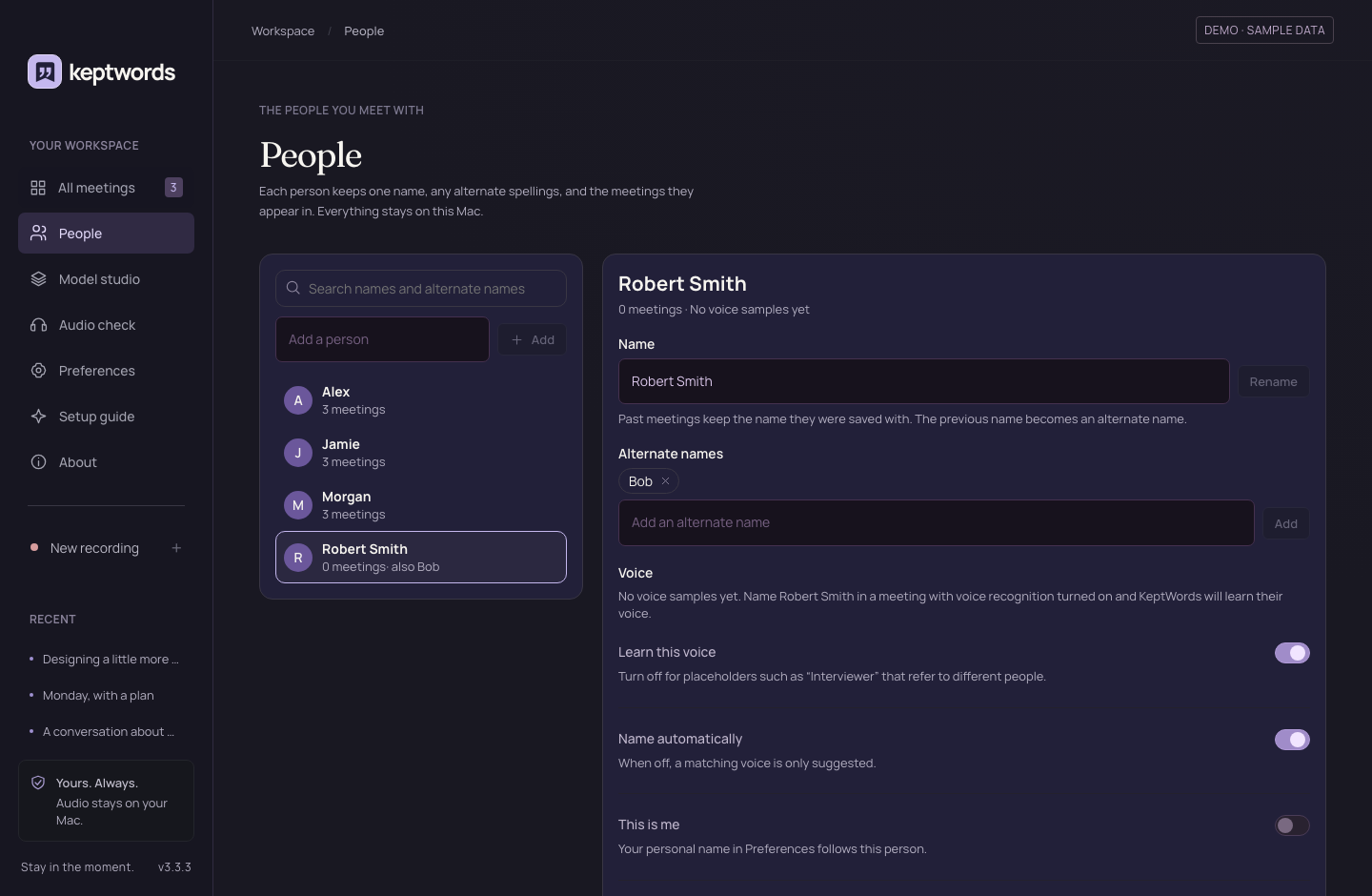
Label speakers opens the review beside the transcript, with unnamed and unconfirmed speakers first. The transcript stays readable, the current speaker’s passages are highlighted, and you can pick another speaker straight from it. When voices that spoke for a while still have no name, a line above the transcript counts them and starts the review. Each short local sample plays automatically and loops while you name the speaker. Type a few characters; the best matching person is highlighted, including alternate names such as “Bob” for “Robert Smith”. Press Enter to save and hear the next speaker. Replay, Another clip, and Skip speaker keep you in control. Listening and manual naming need no voice model. If audio is missing or playback fails, you can still use the transcript and name the speaker.
Speaker turns that follow the conversation.
KeptWords decides who said each word by following the whole conversation instead of judging every word alone. A change of speaker is placed where a sentence ends or someone pauses, so a sentence is not cut between two people, and each turn is one passage. If a passage still has the wrong speaker, open its menu and choose who said it; only that passage changes, its words and audio stay the same, and it is never used as a voice sample. Meetings saved by an earlier version keep their transcript until you choose Update speaker turns in Meeting actions, or update them all in Preferences. Updating changes no words, times, names, or audio, and you can restore a meeting’s previous turns.
Naming a speaker teaches their voice.
Turn on voice recognition in the meeting’s Speakers panel or in Preferences, then choose Download voice model for the 16.6 MB CAM++ model. KeptWords measures each finished meeting once in the background. Whenever you name or confirm a speaker, it keeps a few clean passages of that person’s voice on this Mac. Passages that do not sound like the person’s other samples are not learned, and People shows them so you can decide. There is no separate enrollment step.
Familiar voices are named automatically.
When a voice in another meeting clearly matches one person, and clearly differs from everyone else in the meeting, KeptWords names it and shows an auto badge. Open the speaker to Confirm the name or choose Not [name]; a rejected name stays away for that voice. Less certain matches are offered as suggestions instead: the likely name appears beside the speaker as a question until you confirm it. When the transcript splits one voice into two speakers, both get the same name. Names you type are never replaced, and automatic names are not added to shared conversation files. Text and Markdown exports say which names were recognized by voice and not confirmed.
It knows you, too.
Identify me uses your personal microphone: speech that clearly comes from your microphone is named as you, even when the transcript splits your voice in two. In recordings with separate microphone and system audio, those passages also teach KeptWords your voice, so imported recordings and calls on speakers can recognize you later. Identify me is on for new installs and can be turned off for each recording or in Preferences. If someone else also speaks into your microphone with a different voice, KeptWords leaves it to voice matching or to you.
One person, many names.
People lists everyone you have named. Rename a person, add alternate names, mark which person is you, and review their voice samples. If the same person was saved under two names, Merge combines them: past meetings using either name show the one you keep, the other becomes an alternate name, and their voice samples are combined. KeptWords suggests likely duplicates, such as “Juan” and “Juan Villa”, but never merges anyone automatically. You can undo a merge for speakers nobody has edited since.
Stay in control of what it remembers.
Remove one meeting’s samples, turn off learning for placeholder names such as “Interviewer”, keep a person suggestion-only, or Forget voice to delete all of a person’s samples. Turning voice recognition off removes automatic names but keeps every name you saved. Delete all voice data in Preferences removes every voice sample and automatic name on this Mac and turns voice recognition off. Recordings, transcripts, notes, and saved names are preserved. Voice samples stay on your Mac and are never uploaded or included in shared conversation files.
Label speakers in the real app interface, shown with labelled sample content. Listen, read along, choose a name, and press Enter to continue.
People in the real app interface, shown with labelled sample content. Rename, add alternate names, and merge one person saved under two names.
Voice recognition is local and can be wrong. Similar voices, a different microphone or room, noise, overlapping speech, and very short turns lower accuracy; speaker separation can also mix two people into one speaker. Confirm automatic names that matter. In a check on three real meetings it named two returning people and left every other voice unnamed. Those names have not been independently verified, so this is not an accuracy rate. Parakeet keeps trailing punctuation from extending spoken-word boundaries. Speaker turns depend on speaker separation: each word goes to one speaker, so a short interjection inside someone else’s sentence can be given to that person, and words spoken while people talk over each other can be missed. A stretch of more than four seconds that speaker separation did not label is shown as Unknown speaker instead of being given to a neighbour.
YOUR EARLIER CONVERSATIONS
Moving from meetcap? Bring the words with you.
Find and review your old library.
Use the meetcap step in setup, or open Migrate from meetcap in Preferences. KeptWords checks the old default and configured recordings folders; you can also choose a custom folder or external drive. Preview the meetings, files, copy size, and any problems before selecting all or just a few.
Copy first. Keep the originals.
Import the original audio, transcripts, notes, summaries, and meeting-folder backups into your local library. Your old files stay untouched. Previously imported or removed records are recognized, and meetings with missing audio can retain their saved text. Importing needs storage for another copy, but no speech model.
A fresh transcript, when you choose.
Optionally reprocess every selected recording with your chosen local speech model and speaker separation. Meetings run one at a time, with explicit model preparation and memory checks. Pause and resume unfinished work; reopening the app does not restart it automatically. Review names against new speaker labels. Historical meetcap summaries stay available and are not regenerated by migration.
A CONVERSATION YOU CAN PASS ON
The recording. And everything with it.
Share a .keptwords file with another KeptWords user, or keep a portable copy for yourself.
One file, the whole meeting.
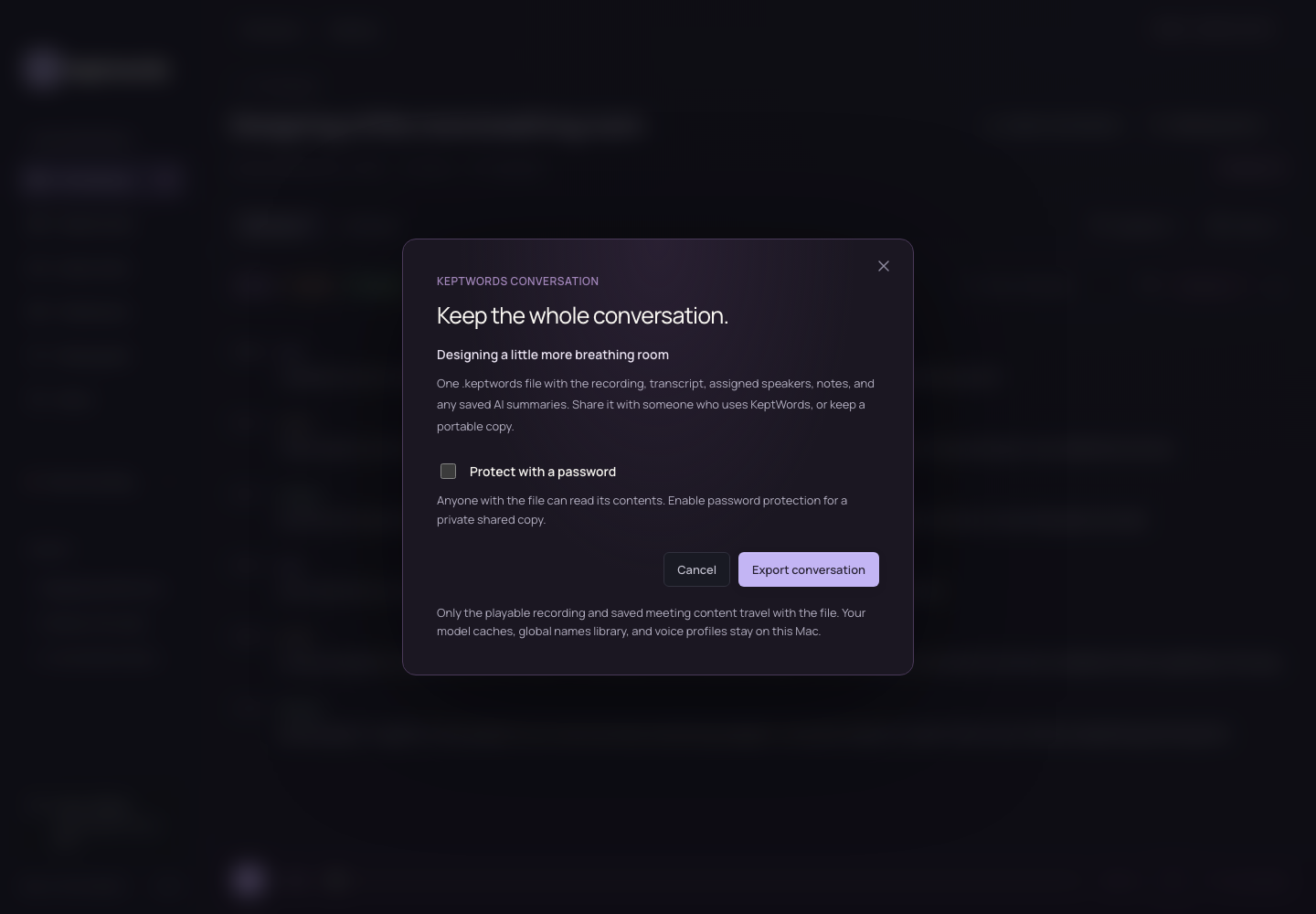
Choose Export conversation to include a playable recording (a lossless rendering of the stored audio for compressed meetings), transcript, assigned speaker names, personal notes, and any saved AI summaries. Audio-only conversations work too. Exporting and importing require no model download.
A password when you need one.
Optionally encrypt all meeting contents with a password of at least 12 characters. The filename and file size stay visible. Share the password separately and keep it safe: KeptWords cannot recover a forgotten password. Without protection, anyone with the file can read its contents.
Open it. Keep your own copy.
Double-click the file on a Mac with KeptWords installed, or choose Import conversation in the library. Enter its password if needed, then add a new meeting without replacing anything already in your library. Imported copies are labelled, with the original meeting date retained.
Names keep their meaning.
Saved names stay attached to their speakers across exports and imports. Add your name in Setup or Preferences so your recordings carry it too. Notes and summaries keep their original wording. Importing a conversation never assigns its speakers to your identity.
Export controls in the real app interface, shown with sample content. Your library and shared files stay under your control.
A conversation file carries the playable recording and saved meeting metadata, up to 32 GiB of audio and 32 MiB of metadata. Separate capture tracks, model caches, the global names library, and voice profiles are excluded. Import validates the file before adding a meeting. Password protection covers the shared file; after import, the library copy is stored locally like your other meetings. Files do not authenticate who sent them.
YOURS. ALWAYS.
What’s said here stays here.
Your recordings, transcripts, summaries, and notes live in the meeting
folder you choose. The search index stays on your Mac. Speech, speaker, search, and summary models run locally. No bot joins
your call. No transcription service receives your meeting audio.
Optional Zoom automation keeps detected titles and partial name
suggestions in the same local library, without reading chat messages.
A cloud-synced folder follows your sync provider’s settings; sharing
that folder with an agent or another app is under your control.
Optional agent access is off by default, read-only, local to your
Mac, and limited to agents you approve; an approved agent sends what
it reads to its own AI provider unless it runs a local model.
Discard a recording or delete a meeting permanently, and KeptWords
erases it from your library, search index, and voice profiles. A
search index set aside after damage is kept as a backup and is not
rewritten by deletion.
Meeting files stay out of Spotlight, so they don’t turn up in Mac
search or in what Siri can look up there. Copied transcripts and
summaries are marked for this Mac only and as concealed, so
Universal Clipboard and clipboard history that respect those
markers leave them out.
Library files are readable only by your Mac account, and you can
leave the library out of Time Machine. Other apps you run under
your account can still open these files: KeptWords does not
encrypt its library yet.
NO CLOUD TRANSCRIPTIONNO TELEMETRYYOUR LOCAL LIBRARY
A FEW GOOD QUESTIONS
Before you press record.
What kind of Mac do I need?+
KeptWords requires an Apple Silicon Mac running macOS 15 or later.
Model weights are downloaded separately and need storage and memory;
the app shows preparation status and checks memory before processing.
Local summaries target Macs with 16 GB RAM and require an explicit
Qwen or Liquid model download. Full-meeting performance testing used
a 32 GB Mac; physical 8 GB and 16 GB Macs remain unqualified. Other
running apps affect available memory.
Memory guidance shows model and working memory allowances in GiB,
separately from macOS headroom, including for summaries and search.
The current speech models use an estimated 2.26 GiB processing
allowance for a one-hour recording plus a fixed 1 GiB safety margin,
about 3.3 GiB available in total. This margin is not allocated to the model
and does not grow with the Mac’s installed RAM. Transcription proceeds
without a memory dialog when this allowance fits, even at noncritical
warning pressure. Critical pressure still stops processing.
Download size is not a RAM requirement.
Speech and speaker processing use bounded audio windows, and
participating KeptWords workers run one model at a time. Models
are released after processing or cancellation. Parakeet live preview
holds its model only during active recording; a resource pause
releases it, and resuming can require another warm-up. These estimates
are not a universal minimum RAM requirement or performance guarantee.
Does KeptWords join my meetings?+
No. KeptWords records audio through native macOS capture. Choose
your microphone, audio playing on your Mac, or both. Let everyone
in the conversation know before you record.
Can recording follow my Zoom calls?+
Yes, through experimental Zoom Triggered Auto-Start/Stop, which is off by default. Enable it in Preferences, grant macOS Accessibility access, and prepare your audio permissions. It checks locally for a call, uses its topic as the recording title, and saves on a confirmed end or meeting change. Visible gallery names become suggestions for manual speaker labelling, not automatic identities. Keep KeptWords open and check its monitoring status. A renamed topic can cause a split; some fast switches or Zoom updates may evade detection.
Can I delete a recording for good?+
Yes. While recording, choose Discard in the recording panel or
Discard recording… from the menu bar, then confirm. Capture stops
and nothing is saved. If KeptWords cannot stop and erase it
safely, it saves the recording instead and tells you, so you can
delete it from the library. For a saved meeting, open Meeting actions,
choose Remove meeting, then Delete permanently and confirm again.
KeptWords erases its audio, transcript, notes, summaries, any copy
in Recently Deleted, its search entries, and voice-profile examples
learned from it. This cannot be undone. Time Machine and other
backups and cloud-synced meeting folders follow their own retention,
a previous output folder kept after moving the library is not
changed, and deleting files on an SSD is not a forensic wipe.
Prefer something recoverable? Move to Recently Deleted instead;
it is kept for 30 days by default, or for the period you choose in
Preferences, before being erased the same way.
How much disk space do meetings use?+
Much less once a meeting is finished. KeptWords compresses
finished meetings on your Mac with Opus, keeping the microphone and
system sources separate when a recording has them. At the default High quality setting, a
source takes about 19 MB per hour instead of about 53 MB stored
losslessly; updating applies this to your existing meetings in the
background. Each compressed file is decoded and checked against
the original before the original is replaced, and a meeting that
fails the check stays lossless. Compression is permanent. In our
limited tests at High quality, transcription and speaker-turn
error rates on public test meetings were within measurement
noise; on the author's three meetings 0.67–2.29% of transcript
words differed from the lossless version, and those differences
have not been reviewed by listening. Voice matching was unchanged
when voices were also learned from compressed audio; matching
against voices learned from lossless audio was not measured. Compact and Smallest
save more space but recognize fewer passages for remembered
voices. Choose Lossless in Preferences to stop compressing
meetings that are not yet compressed. Audio you import that is
already compressed is never re-encoded; lossless imports are
stored in your library as 16 kHz mono Opus, while the file you
imported is left unchanged.
Does it work offline?+
Recording, manual speaker review, and keyword search need no model download. After the
models you choose have been downloaded and prepared, transcription,
search by related meaning, summaries, and experimental voice matching work locally too. Internet is needed
for model downloads and app releases.
Can I change microphones or speakers?+
Yes. Follow the Mac’s default microphone or choose a specific input
for KeptWords. You can switch microphones during a recording; a
handoff can leave a brief gap. Choosing speakers changes the Mac’s
default media output, including other apps that follow it. Guided
setup and Audio check help you inspect permissions and test your
sources.
Does it know who’s speaking?+
Diarization groups speech into anonymous speaker labels; it does
not recognize a person by itself. Label speakers plays short local samples automatically; enter or choose names and press Enter to save and advance, or skip a speaker. If one passage has the wrong speaker, change it from that passage’s menu. No fingerprint model is required. When Zoom automation has collected visible attendee names, the picker offers them as unverified suggestions. You can also enable
voice recognition: after a one-time model download, names you give teach KeptWords each person’s voice, and later meetings name familiar voices automatically with an “auto” badge to confirm or correct. Uncertain matches stay suggestions, and names you saved are never replaced.
Identify me names you from your personal microphone, even when the transcript splits your voice, and teaches KeptWords your voice from recordings with separate microphone and system audio. It is on for new installs and leaves ambiguous cases unnamed. Your optional name is saved with your recordings so recipients see the original recorder’s name. Overlap and noisy recordings can affect results. Live Preview shows words; speaker labels are added during final transcription.
Can I bring my existing recordings?+
Yes. Import audio into your local library; KeptWords copies it so
your original stays untouched. You can export transcripts as plain
text, Markdown, JSON, or SRT subtitles, and save the meeting audio
independently of transcription (a lossless copy of what is stored). To move a whole meeting between
KeptWords libraries, export a .keptwords conversation with optional
password protection, then open it on the receiving Mac. See
conversation sharing for what travels with it.
How do private app updates work?+
If you receive an updater-enabled private build, KeptWords checks
for releases shortly after opening and every four hours. Turn
automatic checks off or check manually in Preferences or About.
Checks wait while recording or checking audio. When an update is
available, choose What’s new beside
Install & restart to read available changes,
including releases you skipped. About and Preferences keep release history
available after updating, with bundled and previously fetched notes
readable offline. Missing older notes are identified if history cannot
be fetched. You choose when to download, install, and restart;
downloads can be cancelled.
Finish recording and processing and save your edits first.
Releases come from private Cloudflare storage; their signatures
are verified before installation. Update checks send no meeting content; your
library and downloaded models stay on your Mac. Older builds need
one manual installation to enable this feature. Private access is
shared with anyone given the app, with no account or per-device
activation. Public downloads remain coming soon.
When can I try KeptWords?+
Coming soon. We’re preparing KeptWords for its first public Mac
release. Downloads and the GitHub repository aren’t available
publicly yet, and public in-app updates are disabled. There’s no
announced release date; this page will carry the download when
it’s ready.